
by Eric Siegfried
Battery life is a concern for many people as they think about using their mobile phone as their sole navigation device while in the field. This makes sense, as most people have experienced a rapid drain in battery of their phone when they leave the city and head into rural areas. But what, truly, is the cause of this rapid battery drain?
Last year I used my phone as my navigation tool on a three-week moose hunt in the middle-of-nowhere Alaska. I saved all the maps onto my phone that I would need for the 40-mile journey down a mighty Alaskan river and went into airplane mode as we lost cell coverage heading out of Fairbanks. During that trip, I used the device somewhat sparingly each day, and after 17 days in the bush, I only had to charge my phone once with my battery pack.

How long will your smartphone battery last when you’re hunting? (Eric Siegfried)
As I thought of that experience, and thought of my experiences with phone battery drain, I came up with a theory. When my friends complain about battery life on their phone, it’s not because of the GPS app they are using, it’s because they are in an area of low or no cell coverage, and their device is using a lot of battery power trying to connect to the cell network as they weave in and out of coverage. The GPS receiver remains active even without connection to a cell network, allowing your pre-saved off-grid maps to be a valuable field tool.
To test this theory, I grabbed two identical mobile phones (iPhone 6s) and planned a trip to rural Montana. I saved all the maps I would need for the weekend trip, charged both phones to 100%, killed all other apps and headed to the mountains with a friend. The plan was to use the onX Hunt App on both devices, performing identical navigation functions throughout the weekend. The only difference? Phone number one would be in airplane mode the whole time, and phone number two would be in the ‘Offline mode’ of the onX App. Offline mode in the onX App kills the connection of the app to all data connections, including the cell network, and forces the app to use the saved maps on the device. So it’s like airplane mode, except the fact that the device and all other apps on the device can still connect to the cell network.
At the end of the first day, phone one (airplane mode) was at 87%, and phone two (offline mode) was at 69% battery life. The morning of day two, phone one was at 77%, phone two at 44%. That evening, phone one was still at 77%, while phone two had dropped to 41%. And the next morning, phone one was at 69% on airplane mode, but phone two—still in offline mode—had plummeted to 10% battery life. The results were clear: airplane mode saved a considerable amount of battery life.
At the end of the weekend, there was a clear winner. The phone in airplane mode had 69% battery life remaining, while the other phone two was down to 10% and was in low power mode.
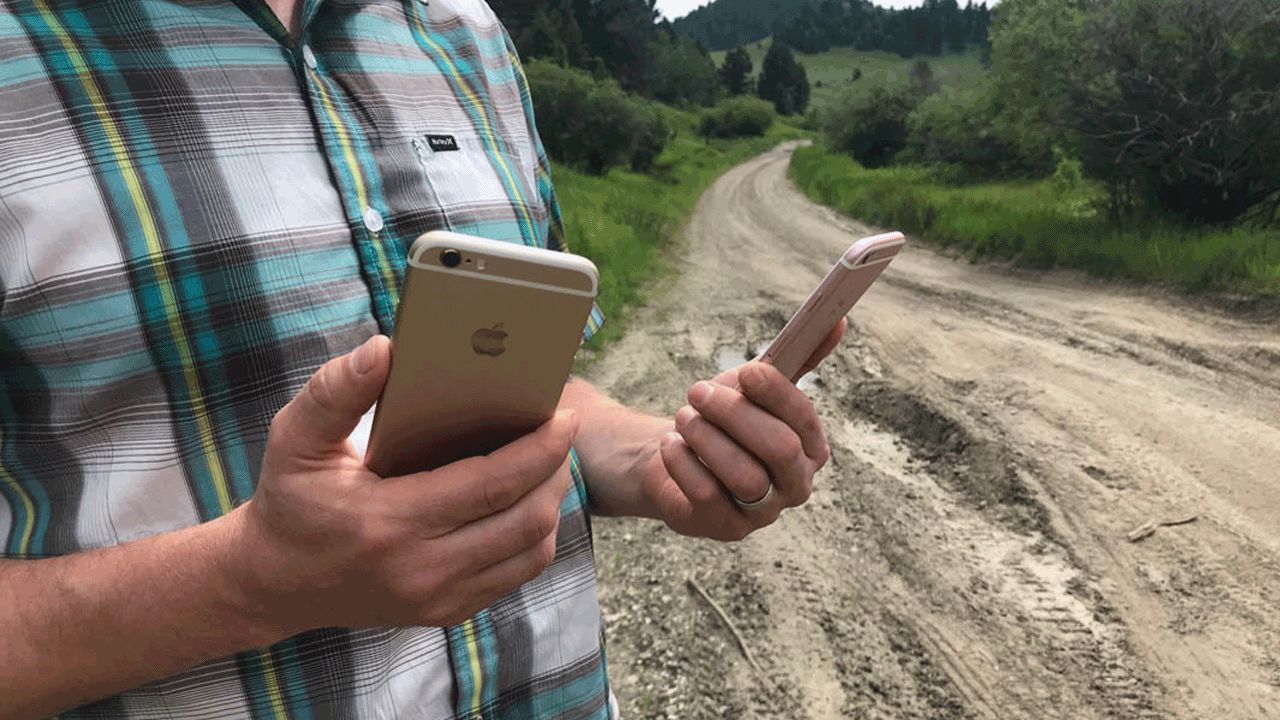
The airplane mode test proved a clear winner when it comes to saving battery life on your smartphone. (Eric Siegfried)
By doing this, the only difference between the two phones we were using is the fact that phone two could still attempt to connect to the cell network while we were weaving in and out of cell coverage and camping in an area of no service. I expected a big difference in battery life, but I was shocked at how much the battery drained on the phone that was allowed to attempt to connect to the cell network, while phone one’s battery life remained high.
My conclusion: weaving in and out of low or no cell coverage areas can drastically reduce battery life due to the phone’s continued attempts to connect to the cellular network. Test it out yourself by using airplane mode one weekend and not using airplane mode the next. Your phone and the onX App can be your main navigation tool for your next weekend adventure if you simply save your maps for offline use and keep your phone in airplane mode as much as possible. Now get off your computer and get out there!
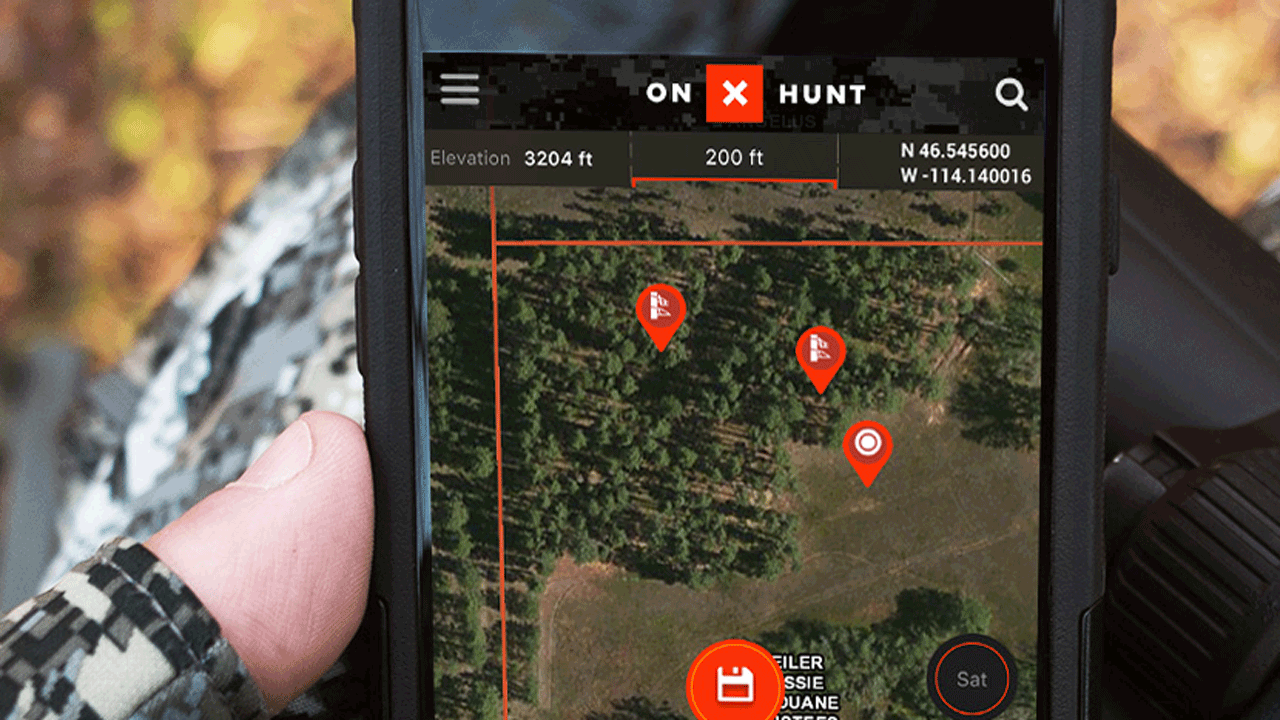
Don’t get stuck with a dead smartphone battery while on the hunt. Put the practice mentioned above to work for you this season.
How to Save Your Smartphone Battery – Tip
Devices have recently released great tools to track what apps and functions of your phone are using your battery life. Here is how to use those tools on iOS and Android:
iOS:
1) Launch Settings from your Home screen.
2) Tap on Battery.
3) Wait a moment for Battery Usage to populate.
4) Tap on the Show Detailed Usage button to get a breakdown of foreground and background power usage.
5) Tap on Last 7 Days to get a broader look at power consumption over time.
Android:
1) Open the Settings app. You can find this on one of your home screens or in your App Drawer, which you can open by tapping the grid button at the bottom of your home screen.
2) Select Battery. If you don’t see this option, scroll to the bottom and tap About Phone, then tap Battery Use.
3) Select Battery Usage if you don’t see a list of apps.
4) Find the apps and services that are using the most battery.
5) Tap an item to see more details.